- Just want to use Claude Code? Download the Desktop app, run the installer, and sign in. You don't need this guide.
- Want the
claudecommand in a terminal, for VS Code, Cursor, WSL or scripts? Follow the four steps below. - Already seeing an error? Go straight to the error finder.
Before you start
- Windows 10 version 1809 or newer (or Windows Server 2019+), 64-bit, with at least 4 GB of RAM.
- A paid Claude plan: Pro, Max, Team, Enterprise, or a Console account. The free plan can install Claude Code but can't use it.
- No admin rights, Node.js or WSL needed.
Install Claude Code
Open the Start menu, type PowerShell, and open
Windows PowerShell. Not Command Prompt, and not the entry
ending in (x86). You're in the right place when the prompt
starts with PS. Paste this and press Enter:
irm https://claude.ai/install.ps1 | iexOther ways to install
| If you | Use | Know this |
|---|---|---|
| Work in Command Prompt | The Command Prompt installer below | Updates itself, like the PowerShell one |
| Manage apps with WinGet | winget install Anthropic.ClaudeCode | Manual updates by default |
| Keep your projects in WSL | The Linux installer, inside WSL | See native or WSL |
| Don't want a terminal | The Desktop app | No claude command |
curl -fsSL https://claude.ai/install.cmd -o install.cmd && install.cmd && del install.cmdOpen a new terminal and check it works
Close the window you installed from and open a fresh one. A terminal keeps
the PATH it had when it opened, so the old window may not find
claude even after a good install. Then run:
claude --version- A version number followed by
(Claude Code): it worked. Go to step 3. - An error: find it in the error finder.
- Something feels off but there's no error: run
claude doctor. It only reads, changes nothing, and lists warnings with suggested fixes.
Add Git for Windows (optional)
Skip this unless your projects use shell scripts written for Mac or Linux. Without Git for Windows, Claude Code runs commands through PowerShell. With it, Claude Code also gets Git Bash.
Install Git from git-scm.com
and pick Add to PATH during setup. If Git lives somewhere
other than C:\Program Files\Git, set its location in
%USERPROFILE%\.claude\settings.json:
{
  "env": {
    "CLAUDE_CODE_GIT_BASH_PATH": "C:\\Program Files\\Git\\bin\\bash.exe"
  }
}Claude Code ignores git-bash.exe. And don't use
C:\Windows\System32\bash.exe: that's WSL's launcher, not Git
Bash, even though typing bash in PowerShell may open it.
Sign in
Open a terminal in a project folder and run claude. Your
browser opens to sign in. If it doesn't, press c to copy the
sign-in link and paste it into your browser. If you've set an
ANTHROPIC_API_KEY environment variable, Claude Code asks you to
approve that key instead.
That's it: Claude Code is installed. Everything below is for when a step goes wrong.
Error finder
Match the first line of what your terminal printed.
'claude' is not recognized
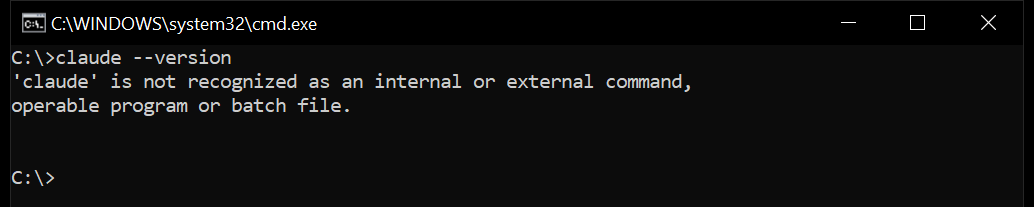
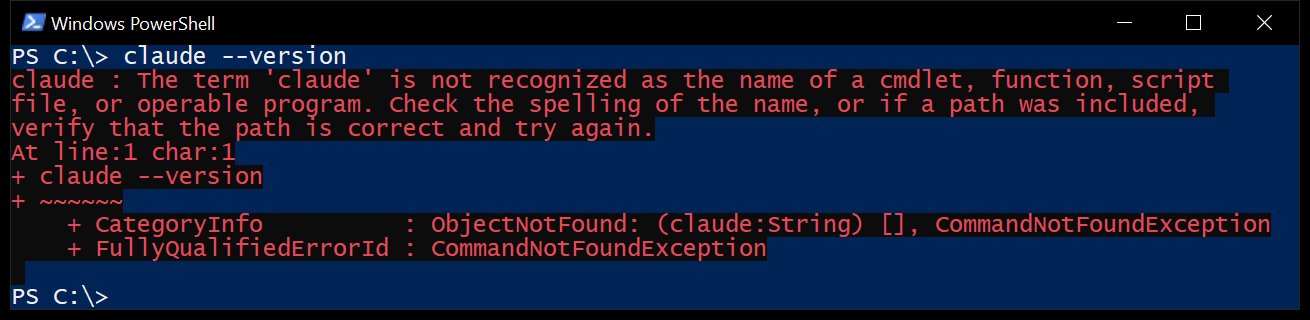
Why: Windows only runs programs from folders on your PATH,
and Claude Code lives in %USERPROFILE%\.local\bin. That folder
isn't on the PATH yet, or this window opened before it was added.
Fix: work down this list and stop when
claude --version works.
- Open a new terminal. This fixes it most of the time.
- Check that the folder is on your PATH. No output means it's
missing:
$env:PATH -split ';' | Select-String '\.local\\bin' - Add it to your user PATH, then open a new terminal:
$currentPath = [Environment]::GetEnvironmentVariable('PATH', 'User') [Environment]::SetEnvironmentVariable('PATH', "$currentPath;$env:USERPROFILE\.local\bin", 'User') - Only have the VS Code extension? It keeps a private copy
of Claude Code and adds no
claudecommand. Run the installer from step 1.
Many guides suggest setx PATH "%PATH%;...". The setx command cuts values
off at 1,024 characters, so on a machine with a long PATH it silently drops
entries. The command above doesn't have that problem.
The claude command works in PowerShell, but not in the VS Code or Cursor terminal
Why: an editor's built-in terminal gets its settings, including the PATH, from the editor, which reads them once, when it starts. If VS Code or Cursor was already open when you installed Claude Code, even a brand-new terminal tab inside it still has the old PATH.
Fix: close the editor completely, every window, then open
it again and open a new terminal. Still not found? Check that you installed the
terminal version from step 1: the VS Code extension on
its own doesn't add a claude command.
'irm' is not recognized

Why: irm only exists in PowerShell.
Fix: open Windows PowerShell and run the step 1 command, or stay in Command Prompt and use the Command Prompt installer.
The token '&&' is not a valid statement separator
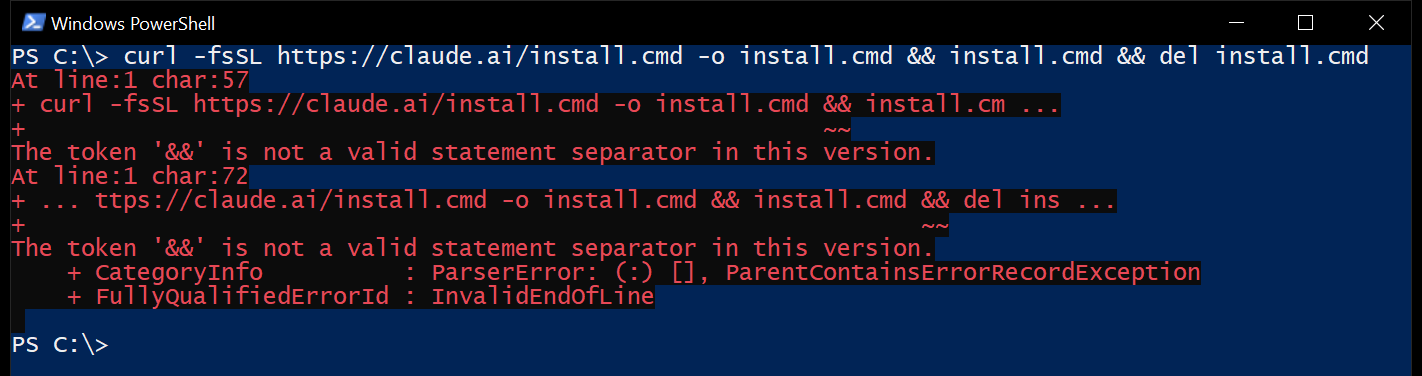
Why: Windows PowerShell, the version built into Windows,
doesn't understand &&. That's Command Prompt syntax.
Fix: in PowerShell, use the PowerShell command:
irm https://claude.ai/install.ps1 | iexA parameter cannot be found that matches parameter name 'fsSL'
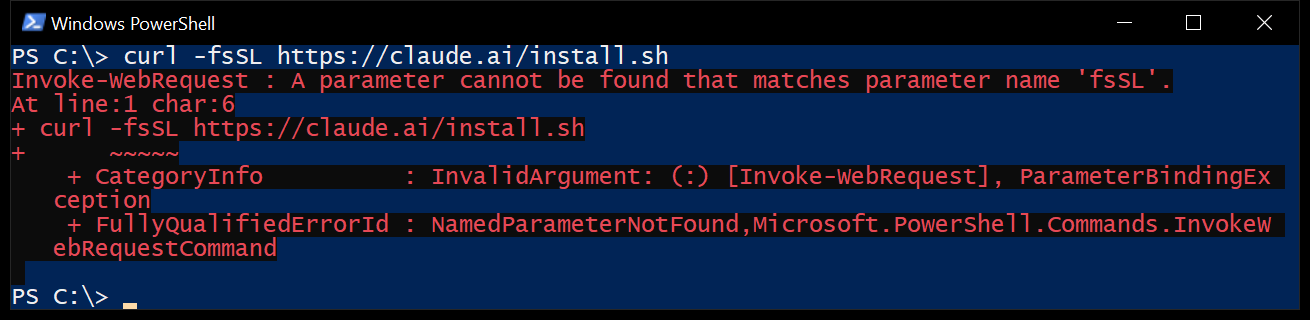
Why: in Windows PowerShell, curl is really
Invoke-WebRequest, which doesn't know the Mac and Linux flags.
If you see 'bash' is not recognized instead, it's the same mistake.
Fix: use the step 1 command. The
install.sh installer is for Mac, Linux and WSL only.
The script's text prints, and nothing installs
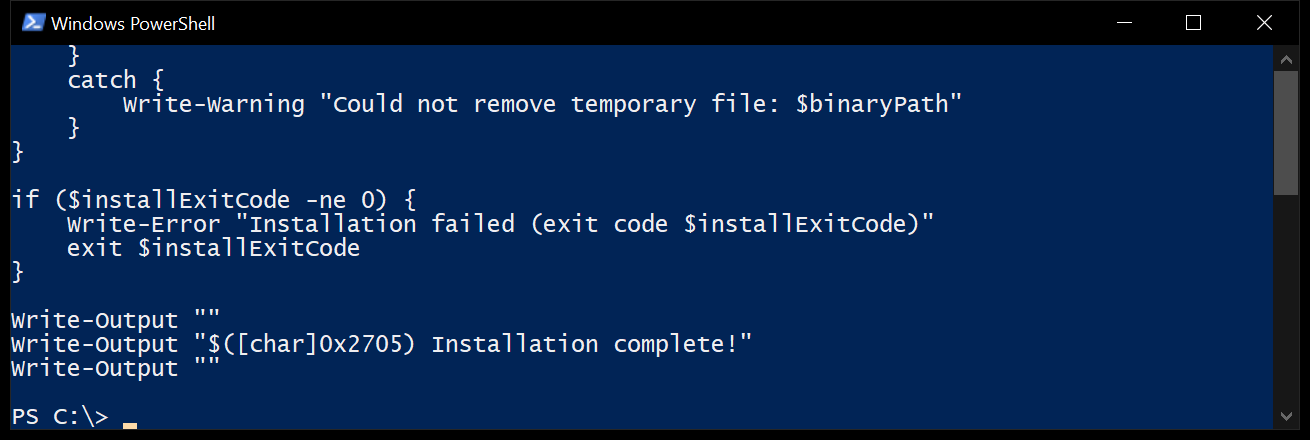
Why: irm https://claude.ai/install.ps1
downloads the installer and prints it. The | iex at the end is
the part that runs it.
Fix: paste the whole line from step 1.
In Command Prompt, the same happens if -o install.cmd is
missing.
running scripts is disabled on this system
npm : File C:\Program Files\nodejs\npm.ps1 cannot be loaded because running
scripts is disabled on this system.
Why: this only happens with an npm install. PowerShell's
execution policy blocks the .ps1 launchers npm creates, including
claude.ps1.
Fix: pick one.
- Easiest: skip npm and use the step 1 installer. It installs a program, not a script.
- Keep npm: allow scripts for your account, then retry:
Set-ExecutionPolicy -ExecutionPolicy RemoteSigned -Scope CurrentUser - Leave the policy alone: type
claude.cmdinstead ofclaude.
The process cannot access the file
Failed to download binary: The process cannot access the file ... because it is
being used by another process
Why: another installer window is still running, or antivirus is scanning the half-finished download.
Fix: close other PowerShell windows, wait a minute for the scan, then clear the download folder and install again:
Remove-Item -Recurse -Force "$env:USERPROFILE\.claude\downloads"
irm https://claude.ai/install.ps1 | iex
Claude Code does not support 32-bit Windows
Why: almost always, you opened Windows PowerShell (x86), which runs as a 32-bit program even on 64-bit Windows.
Fix: close it, open plain Windows PowerShell, and install again.
Check: not sure? Run this in the window that failed.
True means your Windows is fine and only the window was wrong.
False means the machine really is 32-bit, and Claude Code won't run
on it.
[Environment]::Is64BitOperatingSystemClaude Code on Windows requires either Git for Windows (for bash) or PowerShell
Why: Claude Code found neither shell.
Fix:
- PowerShell missing from PATH: add
C:\Windows\System32\WindowsPowerShell\v1.0\to your PATH, or install PowerShell 7. - Git installed but not found: run
where.exe git, then setCLAUDE_CODE_GIT_BASH_PATHto that install'sbin\bash.exe, as in step 3. - Right path, still failing on a work laptop: security
software such as AppLocker may be blocking it. Ask IT to allow
claude.exeand thecmd.exeandbash.exeprocesses it starts.
Typing claude opens the Desktop app
Why: an older Claude Desktop app registered its own
Claude.exe in a folder Windows checks first.
Fix: update the Desktop app to the latest version.
unable to get local issuer certificate, 403, or TLS errors
Why: the download didn't arrive intact. Company laptops,
school networks and some VPNs inspect or block it. The one exception is
App unavailable in region, which means Claude Code isn't offered in
your country.
Fix: try once from another connection, such as a phone hotspot. If it works there, the network is the problem, and Anthropic documents how your IT team can configure a corporate certificate.
cannot execute binary file: Exec format error
Why: you're in WSL 1 and hitting a known problem with how it loads Claude Code (issue #38788).
Fix: move your distribution to WSL 2. In PowerShell, list your distributions, then convert yours by name:
wsl -l -v
wsl --set-version Ubuntu 2
Replace Ubuntu with the name from the list, then run
claude again inside WSL. If you must stay on WSL 1, Anthropic
documents a
workaround.
OAuth error or 403 Forbidden after signing in
Why: usually the account has no Claude Code access, which is the case on the free plan, or the sign-in got stuck.
Fix: confirm you're signing in with the account that has the
paid plan. Then reset your sign-in: type /logout inside Claude Code,
close it, run claude, and sign in again. For rarer cases, see
Anthropic's
login
troubleshooting.
Native Windows or WSL?
Stay on native Windows unless one of these is true:
- Your projects already live in WSL. Keep Claude Code next to the code.
- You want sandboxed commands. Sandboxing works on WSL 2, not on native Windows.
- Your toolchain is Linux-only.
If you use WSL, keep projects under /home/, not
/mnt/c/, where search is slow and can miss files.
Keeping it updated
The PowerShell and Command Prompt installers update Claude Code in the background; the new version takes over the next time you run claude. To update now, run
claude update.
WinGet installs don't update on their own. Either upgrade by hand, with every Claude Code window closed so Windows doesn't lock the file:
winget upgrade Anthropic.ClaudeCodeOr set the environment variable
CLAUDE_CODE_PACKAGE_MANAGER_AUTO_UPDATE to 1, and
Claude Code runs that upgrade for you in the background, then asks you to
restart.
Starting clean
If nothing worked, reinstall. First check for a second copy, such as an old npm install next to a new one:
where.exe claudeRemove whichever you have, then run the step 1 installer again:
# PowerShell or Command Prompt installer
Remove-Item -Path "$env:USERPROFILE\.local\bin\claude.exe" -Force
Remove-Item -Path "$env:USERPROFILE\.local\share\claude" -Recurse -Force

# WinGet
winget uninstall Anthropic.ClaudeCode

# npm
npm uninstall -g @anthropic-ai/claude-code
Your settings, MCP servers and session history stay in
%USERPROFILE%\.claude. Leave that folder alone to keep them.
Next steps
- Your first session: Anthropic's quickstart walks through a first task in a real project.
- Make it follow your rules: set up hooks so Claude Code formats code and blocks risky commands on its own.
Frequently asked
Does Claude Code work on Windows without WSL?
Yes. It runs natively on Windows 10 version 1809 and newer, and on Windows Server 2019 and newer. WSL is only worth it if your projects live there or you want sandboxed commands.
Do I need Git for Windows to use Claude Code?
No. Without it, Claude Code runs commands through PowerShell. With it, Claude Code also gets Git Bash, which helps when your projects use shell scripts written for Mac or Linux.
Is Claude Code free on Windows?
Installing is free, but using it needs a Claude Pro, Max, Team or Enterprise plan, or a Console account. The free Claude plan doesn't include Claude Code.
Why doesn't the claude command work in the VS Code terminal?
Usually one of two things. VS Code was open when you installed Claude Code, so its terminals still use the old PATH: quit VS Code completely and reopen it. Or you only installed the VS Code extension, which carries a private copy of Claude Code and doesn't add a claude command: install it with the PowerShell installer.
Should I install Claude Code with npm on Windows?
There's no need. The PowerShell installer puts the same program on your machine without Node.js, and it updates itself. The npm package asks for Node.js 22 or later, and on Windows its launcher scripts can be blocked by PowerShell's script policy.
Checked against Anthropic's setup and install troubleshooting documentation in September 2026. Screenshots captured on Windows 10 with Windows PowerShell 5.1; other error messages are quoted from those docs. If a fix here has stopped working, tell us and it gets fixed.
